
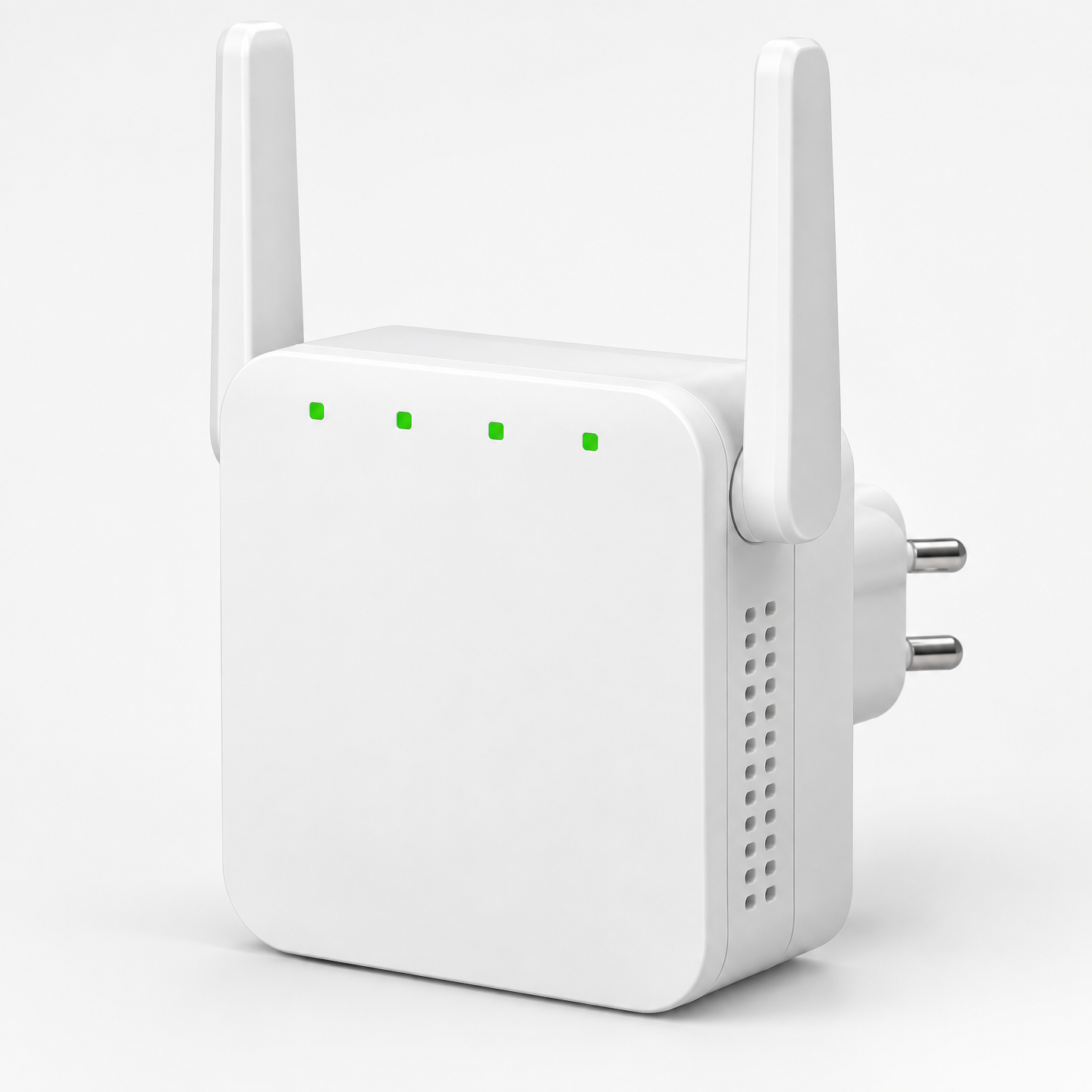
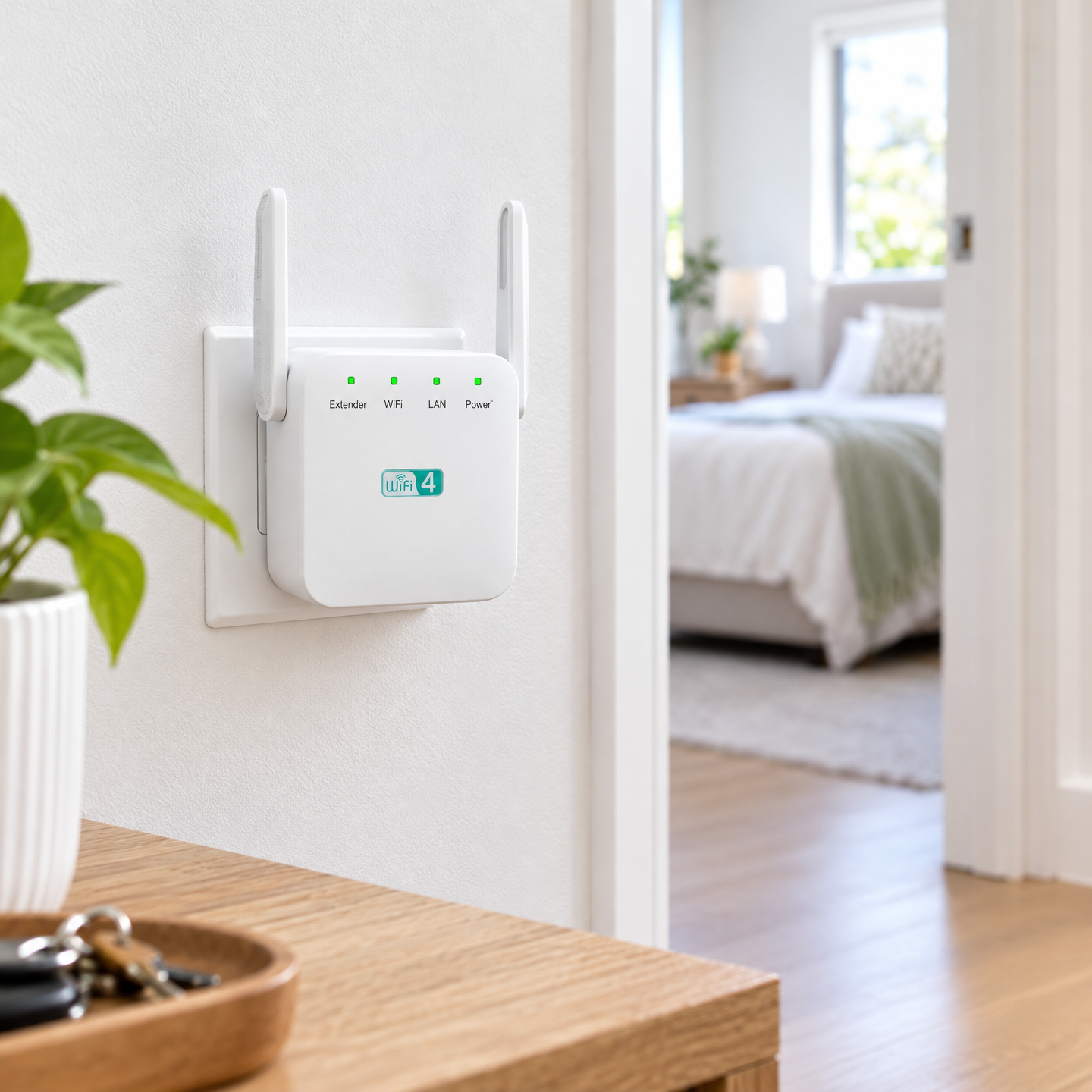
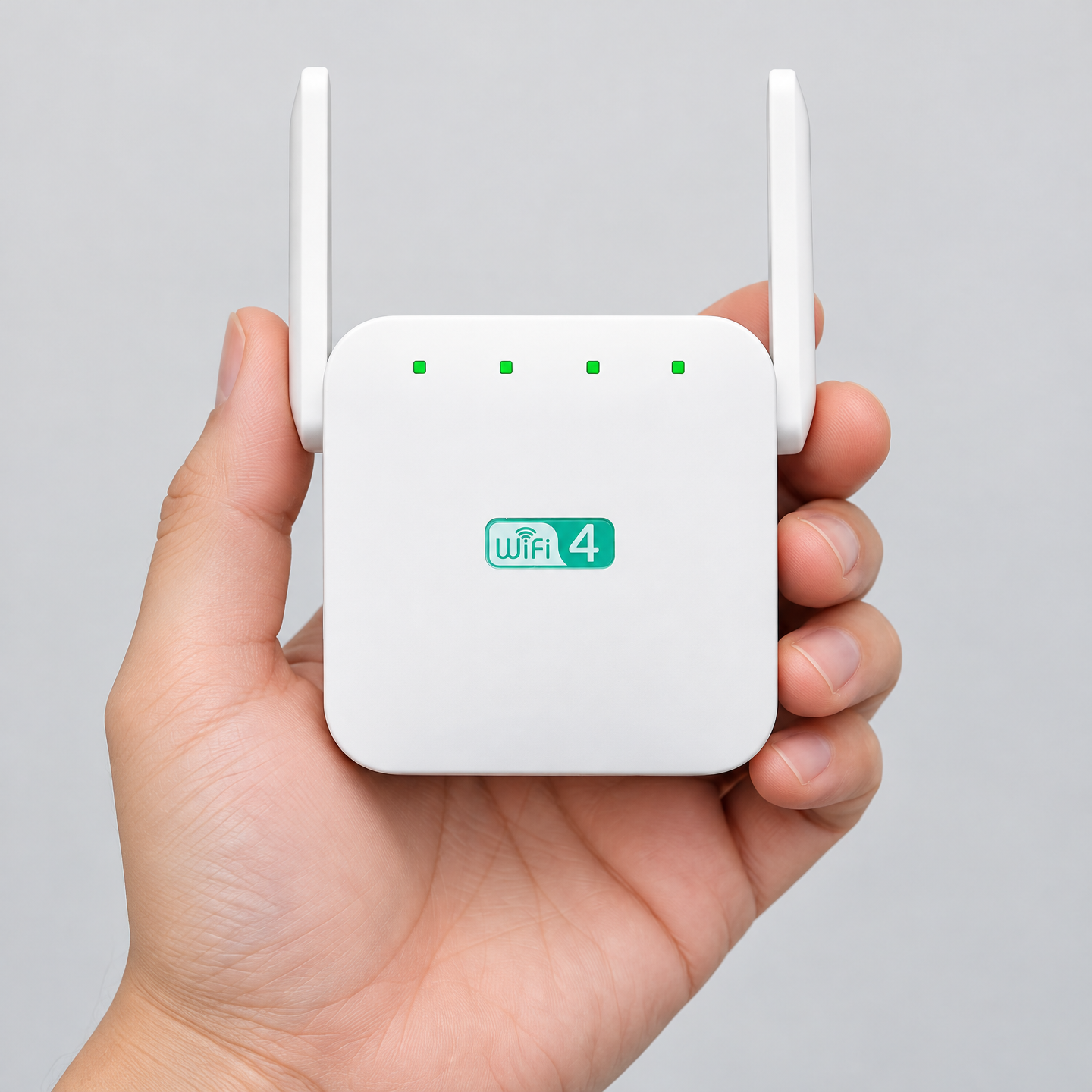
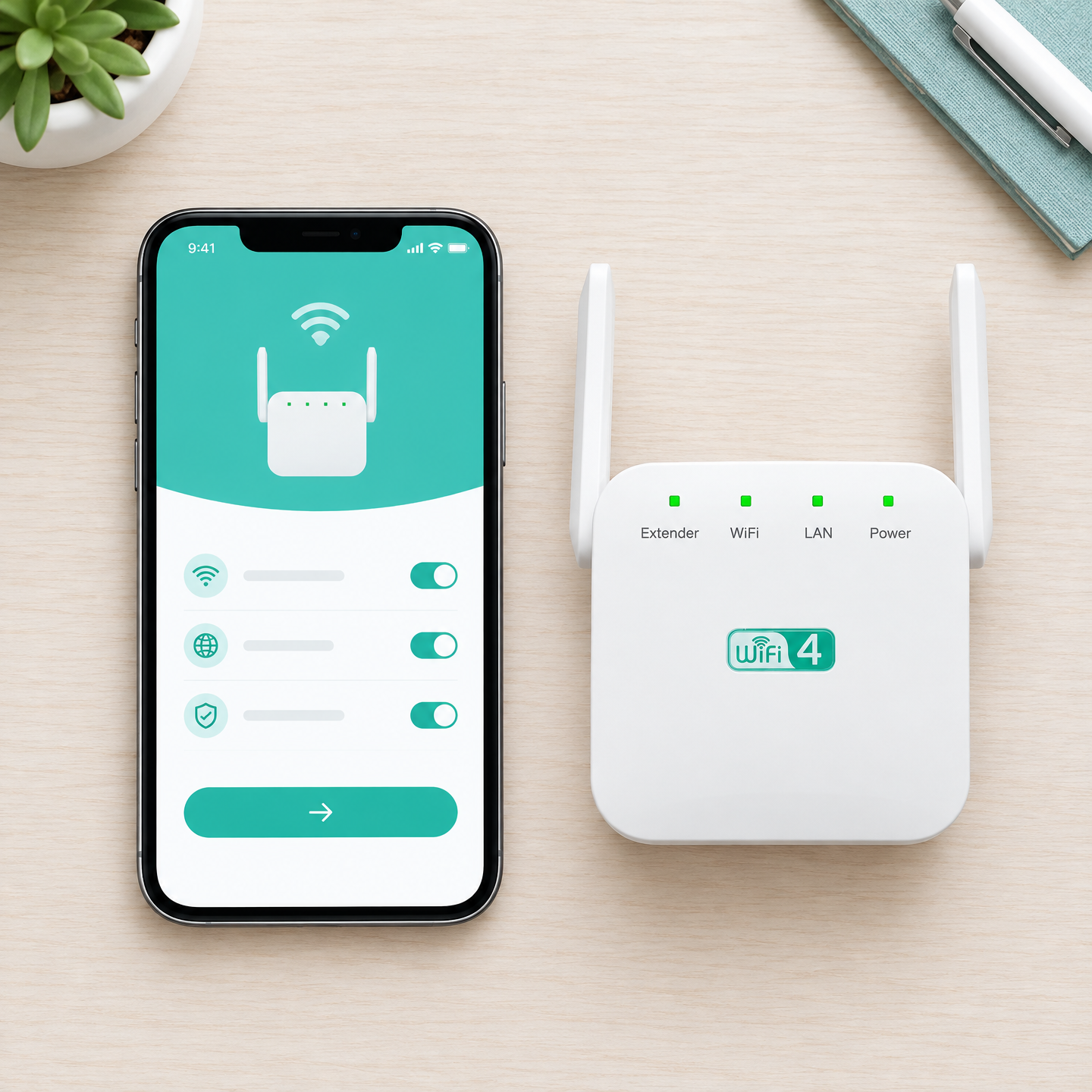
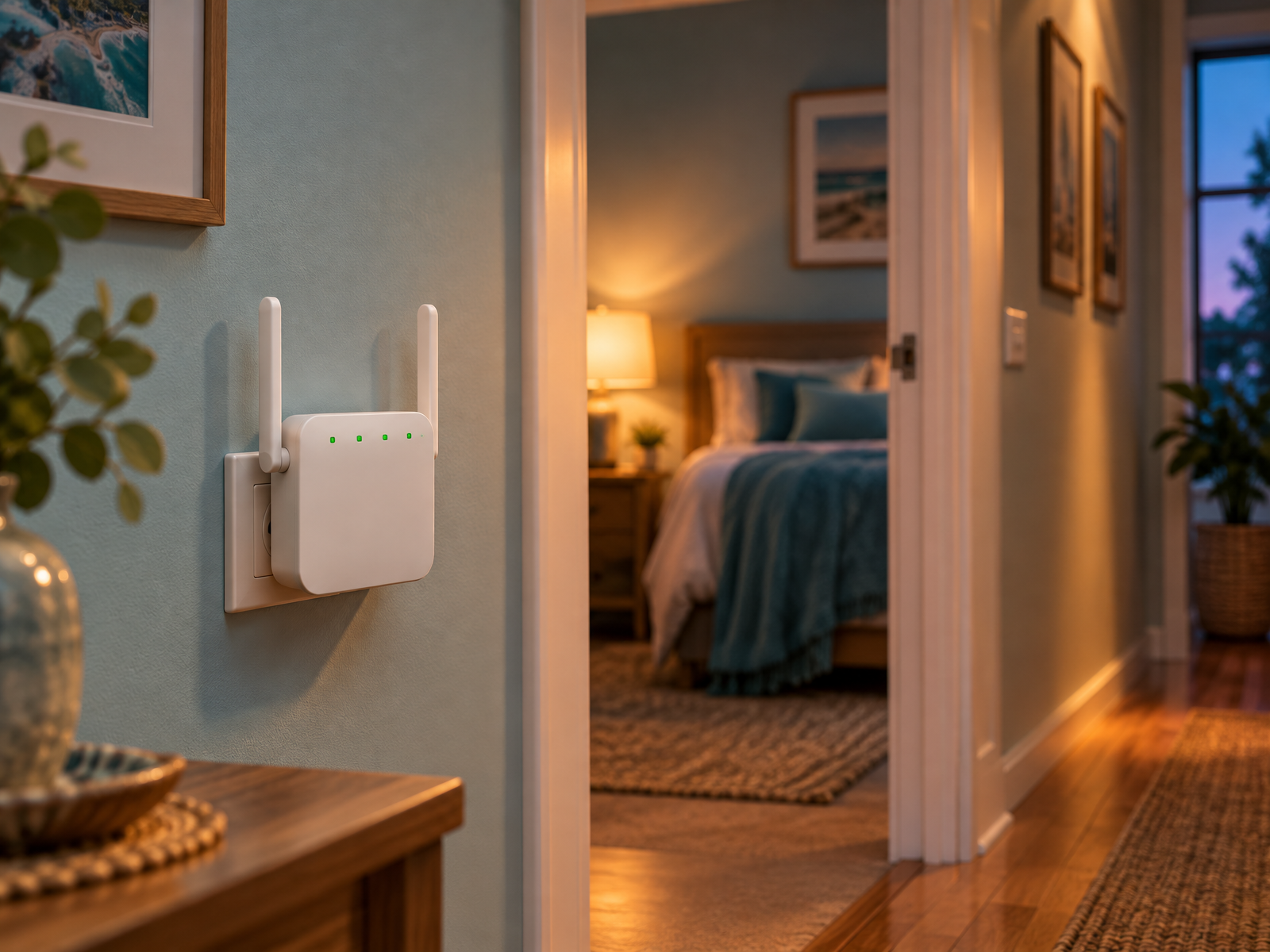
Images 2–5 are design placeholders. Replace with real photos of your own unit before publishing
A plug-in WiFi extender for the one room your router can't quite reach.
NetBoost Pro is a compact 2.4 GHz repeater with a simple browser setup. Plug it in halfway to the weak spot, join the network ending in _EXT, and get a more usable signal for browsing, email and smart-home gear.
- 2.4 GHz only
- Up to 300 Mbps*
- Up to 15 m, open space
- Plugs into a wall outlet
$49.90 AUD
incl. GST · bundles from $34.95 each
*Wireless speeds are theoretical maximums and real-world performance varies with distance, building materials, interference and your router. A repeater reduces throughput compared with a wired connection. Our goods come with guarantees that cannot be excluded under the Australian Consumer Law.
- Shipping to your doorFrom [DISPATCH SUBURB, STATE]
- 30-day returnsOn top of your ACL rights
- 24/7 customer support[support channel]
Safety: plug directly into an Australian wall outlet, don't cover the unit, keep it away from water. Full safety notes
Quick answers
The six things most people want to know before buying a WiFi extender in Australia.
- Will it speed up my internet plan?
- No. It helps a coverage gap, not a slow plan or a congested network. Speeds through any repeater are lower than at the router.
- Where's the best place to put a WiFi extender?
- About halfway between the router and the weak room, at an outlet where your phone still shows two to three bars.
- Does it work on 5 GHz?
- No. It's 2.4 GHz only. It can't extend a 5 GHz-only network and isn't a mesh system.
- Do WiFi extenders slow down internet?
- Through the extender, yes: a single-band repeater typically delivers roughly half the throughput, or less. Devices near the router aren't affected.
- How long does setup take?
- Four browser steps plus a security step. Allow up to two minutes for the unit to start, then a few minutes to configure.
- What does it cost?
- $49.90 AUD incl. GST for one, or from $34.95 each in a five-pack. See all bundles.
The product
What is NetBoost Pro?
NetBoost Pro is a compact plug-in WiFi repeater for the 2.4 GHz band. It listens to your existing router and re-broadcasts that signal from a different power outlet, creating a second network whose name ends in _EXT.
It is built for one specific problem: a nearby room (a bedroom at the back, a study down the hall, a lounge on the far side of a brick wall) where the router's signal is weak or keeps dropping out. In that room it can make WiFi more usable for web browsing, email, smart-home devices and some video calls.
It does not boost your internet plan. Throughput through a repeater is lower than at the router, and results depend heavily on where you plug it in. This page explains those limits openly, so you can decide whether an extender is the right fix or whether something else would serve you better.
How it works
A relay, not a booster
Think of a repeater as a relay runner standing in the hallway. It catches the signal from your router and passes it on to devices the router can't reach well. Every message has to be caught and passed again, in both directions.
Your router
Broadcasts your home network on 2.4 GHz
NetBoost Pro
Receives, then re-sends on the same radio
Your device
Joins the network ending in _EXT
Because a single-band repeater has one radio, it takes turns: listening to the router, then talking to your device. That turn-taking is the main reason throughput drops.
Why there are two network names
After setup, your router keeps broadcasting its usual network, and NetBoost Pro broadcasts a copy with _EXT added to the end. Devices in the weak room should join the _EXT network. Devices close to the router should stay on the original.
Unlike a mesh system, a basic repeater doesn't hand devices back and forth automatically. If you carry a laptop from room to room, you may need to switch networks yourself.
Why placement matters so much
An extender can only re-broadcast what it receives. If you plug it into the dead zone, it's relaying a weak, unreliable signal, and the result is a strong-looking _EXT network that still performs poorly.
Plug it in where the router's signal is still decent, but close enough to the weak room that its own signal reaches there. That's usually around halfway.
2.4 GHz
Single band only
300 Mbps
Up to, theoretical link rate
50 ft
Up to ~15 m, open conditions
109 g
Lighter than most phones
8×9×9 cm
Compact plug-in body
Placement guide
The best place to put a WiFi extender
Placement decides most of what you'll experience. The rule of thumb is simple: halfway between the router and the dead zone, at an outlet where your phone still shows two to three bars of the router's network.
Placement checklist
- Stand at the candidate outlet with your phone. You want two to three bars of your router's network, not one.
- Keep the thickest wall (often brick or a wet-area wall) between the extender and the weak room, not between the router and the extender.
- Plug directly into a wall outlet. Avoid behind TVs, fridges, metal cabinets or fish tanks.
- Higher outlets (benchtop height) usually beat skirting-board outlets behind furniture.
- Keep it away from microwaves, cordless phone bases and baby monitors, which can share the 2.4 GHz band.
A guide to Australian homes
Brick veneer: the most common build. Internal walls are usually plasterboard and easy for WiFi, so the brick outer skin matters mostly for granny flats, garages and the yard.
Double brick: common in older Perth, Adelaide and inner-city homes. Internal brick walls absorb a lot of signal, so plan the extender's position around them and expect shorter range.
Timber (Queenslanders, weatherboard): generally kind to WiFi. Distance and long hallways are the bigger issue than walls.
Concrete slabs and multi-storey: a concrete floor between levels blocks a lot of signal. An extender on the stairwell landing often works better than one directly below the dead room.
Granny flats and sheds: metal cladding, Colorbond and foil insulation reflect WiFi strongly. A plug-in extender inside the main house rarely covers a separate metal building well. A wired access point or powerline kit is usually the better option there.
Wall material signal loss
Typical, qualitative ratings. Actual loss varies with thickness, moisture and construction.
| Material | Signal loss | Where you'll find it |
|---|---|---|
| Plasterboard | Low | Most internal walls |
| Timber | Low–moderate | Weatherboard, Queenslanders |
| Single brick | Moderate–high | Brick veneer outer skin |
| Double brick | High | Older homes, WA, SA |
| Concrete / slab | Very high | Floors between storeys, units |
| Metal roofing / cladding | Very high | Sheds, granny flats, garages |
| Foil insulation / sarking | High | Ceilings, newer external walls |
| Tiled wet areas, mirrors | Moderate–high | Bathrooms, laundries |
Dead-zone detective
How to fix WiFi dead zones at home: first find out what's actually causing it.
- 1
Is it your plan?
Run a speed test right next to the router. If it's slow there too, the problem is the plan, the modem or the network, and an extender won't help.
- 2
Is it distance?
Walk slowly from the router towards the weak room. If bars fade steadily over open space, distance is the cause, and an extender is a good fit.
- 3
Is it a wall?
If the signal drops sharply at one doorway or wall, that wall is the culprit. Put the extender on the router's side of it.
- 4
Is it interference?
If it gets worse at certain times (evenings, microwave on), crowded 2.4 GHz channels may be the issue. Try changing the router's channel first.
Specifications
The real specs
We only list what our documentation confirms. Highlighted fields are still being confirmed against the unit, packaging and supplier data sheet, and will be filled in before sale.
NetBoost Pro is single-band (2.4 GHz) and is not a mesh system.
| Product type | WiFi repeater / range extender (plug-in) |
|---|---|
| Wireless band | 2.4 GHz only. Cannot extend 5 GHz. |
| Maximum link rate | Up to 300 Mbps (theoretical; real throughput is lower) |
| Coverage range | Up to 50 ft / about 15 m in open conditions; reduced by walls and interference |
| Dimensions | 8 × 9 × 9 cm |
| Weight | 109 g |
| Colour | White |
| Setup network | "Pix-Link" (default setup name); extended network ends in _EXT |
| Setup address | 192.168.7.1 (browser) |
| Plug type | [PRODUCT FIELD: Australian Type I (AS/NZS 3112) or approved adaptor] |
| Wireless standard | [PRODUCT FIELD] |
| Antennas | [PRODUCT FIELD] |
| Ethernet ports | [PRODUCT FIELD] |
| WPS button / LEDs | [PRODUCT FIELD] |
| Power consumption | [PRODUCT FIELD] |
| Firmware | [PRODUCT FIELD] |
| What's in the box | [PRODUCT FIELD: box contents] |
| Warranty | [PRODUCT FIELD] plus your ACL rights |
| Compliance | [RCM status, SDoC and EESS registration — state only once records are on file] |
Setup
How to set up a WiFi repeater in four steps (plus one for security)
You'll need your home WiFi name and password, and a phone or computer with a web browser. No app is required.
-
1
Power it near the router
Plug it into an outlet within range of the router and wait 30 seconds to two minutes.
-
2
Join Pix-Link
On your phone or computer, open WiFi settings and connect to Pix-Link. That's the default setup network name from the device's manufacturer.
-
3
Choose Repeater mode
If the setup page doesn't open, go to
192.168.7.1, log in, select Repeater mode and choose your home network. -
4
Connect to _EXT
Enter your home WiFi password, then join the network ending in _EXT. Move the unit to the best outlet between the router and the weak spot.
-
5
Secure it
Set an admin password for the extender's settings page and check for firmware updates. Don't skip this step.
192.168.7.1 repeater setup tip: type the address straight into the browser's address bar (not a search box) while connected to Pix-Link, with mobile data turned off. The settings page opens without a password the first time, which is exactly why step 5 matters.
Is it for you?
Who it's for, and who it isn't
We'd rather you buy the right product than return the wrong one. Here's an honest split.
A good fit if…
- One room or one end of the house has a weak signal, but the rest is fine.
- You need a WiFi extender for a home office for email, browsing, documents and some video calls.
- Smart plugs, cameras or speakers in a far room keep dropping off (many use 2.4 GHz anyway).
- You're renting and can't run cables.
- Your router broadcasts a 2.4 GHz network.
Probably not for you if…
- Your internet is slow even right next to the router.
- You want seamless coverage across a large or multi-storey home (look at mesh).
- You need the highest throughput for big downloads or competitive online play (use Ethernet).
- The weak spot is a metal shed or a separate granny flat (consider powerline or a wired access point).
- Your network is 5 GHz only.
Before you buy: is this the right product?
Answer these four questions. If you get a "Stop" anywhere, read the suggestion first.
1. Is the internet fast next to the router?
Yes → continue. No → Stop: talk to your provider or check your modem first.
2. Is the problem mostly one room or area?
Yes → continue. No → Stop: a mesh system suits whole-home gaps better.
3. Does your router broadcast 2.4 GHz?
Yes → continue. No / unsure → Check: look in your modem's WiFi settings.
4. Is there an outlet about halfway with 2–3 bars?
Yes → NetBoost Pro is a sensible fit. No → Stop: powerline or a wired access point may work better.
Compare
WiFi repeater vs extender vs mesh (and the other options)
"Repeater", "extender" and "plug-in WiFi booster" usually describe the same kind of device: one that receives WiFi and re-broadcasts it. Mesh, powerline and access points solve the same problem in different ways, at different prices.
| Feature | Plug-in extendere.g. NetBoost Pro | Mesh system | Powerline + WiFi | Wired access point |
|---|---|---|---|---|
| How it connects | Wirelessly to your router | Nodes talk to each other wirelessly (some via cable) | Through your home's electrical wiring | Ethernet cable from the router |
| Best for | One nearby weak room | Whole home, multi-storey | Rooms behind thick walls on the same circuit | Granny flats, sheds, offices |
| Throughput | Lower than router (roughly half or less) | Better, varies with backhaul | Varies with wiring quality | Best of the four |
| Roaming | Separate _EXT network, manual switch | One network name, automatic | Usually separate network | Can share a name with setup |
| Setup effort | Low: plug in, browser setup | Low–medium, usually app-based | Low–medium | Higher: cable runs |
| Typical cost | Lowest | Highest | Middle | Middle, plus cabling |
2.4 GHz vs 5 GHz WiFi
Most home routers broadcast on two bands. 2.4 GHz has longer waves that travel further and pass through walls better, but it carries less data and is shared by many devices (and by microwaves and Bluetooth).
5 GHz carries more data at short range but fades faster through walls. NetBoost Pro works on 2.4 GHz only, so it trades peak speed for reach. Some NBN modems combine both bands under one name; that's fine as long as 2.4 GHz is switched on.
| If you need… | Better band |
|---|---|
| Reach through walls and down hallways | 2.4 GHz |
| Smart plugs, cameras, older devices | 2.4 GHz |
| Highest speed in the same room as the router | 5 GHz |
| Less interference in a busy apartment block | 5 GHz |
| Extending into a far room with this product | 2.4 GHz (only option) |
Real speed and limitations
Why a "300 Mbps" label isn't 300 Mbps
300 Mbps is the theoretical maximum link rate for this class of single-stream 2.4 GHz device: the speed the radio could negotiate in ideal lab conditions. It isn't the speed you'll measure.
Real-world throughput is lower once distance, walls, other networks and protocol overheads are counted. Then a single-band repeater roughly halves it again, because it uses one radio to both receive and re-send.
Do WiFi extenders slow down internet? For devices connected through the extender, yes, compared with being next to the router. The trade-off is worth it only when the alternative is a signal that keeps dropping out. And nothing on your home network can carry speeds beyond what your NBN plan delivers.
- Suits browsing, email, standard-quality streaming and smart-home devices
- Can support some video calls when placed well
- Won't fix a slow plan or a congested network
- Not a substitute for Ethernet where speed matters most
Troubleshooting
When something isn't working
I can't see a network ending in _EXT
The _EXT network only appears after you've completed Repeater mode setup and entered your home WiFi password correctly. If setup finished but nothing shows, wait two minutes for the unit to restart.
Still missing? Your password may have been mistyped, or your router may have 2.4 GHz turned off. Reset the unit as described in the included instructions and repeat steps 1–4 close to the router.
The setup page won't open
Make sure you're connected to Pix-Link, not your home WiFi. Phones sometimes switch back automatically when a network has no internet, so turn off mobile data and "auto-join" for your home network temporarily.
Type http://192.168.7.1 into the address bar, not a search box. Try a different browser, or a laptop instead of a phone.
The connection keeps dropping out
Dropouts usually mean the extender is too far from the router. Move it one outlet closer and test again. Check that it isn't behind a fridge, TV or metal cabinet.
If dropouts happen at particular times, try changing your router's 2.4 GHz channel (1, 6 or 11 are common choices) to avoid neighbours' networks.
It's connected but slow
First test next to the router. If it's slow there too, the extender isn't the cause. If it's only slow on _EXT, some speed loss is expected with any single-band repeater.
To improve it: move the unit to a spot with stronger router signal, reduce the number of busy devices on _EXT, and make sure the device you're using is on _EXT rather than clinging to a weak signal from the router.
Compliance, safety and security
The responsible-use notes
A WiFi extender is both radio equipment and a mains-powered electrical device. Here's what that means for you, and what we're responsible for as the supplier.
placeholder
Regulatory compliance
In Australia, radio and electrical equipment must carry the Regulatory Compliance Mark (RCM), and the supplier must hold a declaration of conformity and test records.
[RCM status and plug type will be stated here only once the supplier declaration of conformity, test reports and EESS registration are on file.]
Electrical safety
- Use an Australian-approved plug and wall outlet.
- Don't use a damaged unit. Don't cover it; it gets warm in normal use.
- Keep away from water and wet areas.
- Don't overload a power board. Unplug before cleaning.
Security checklist
- Set an admin password straight after setup.
- Use WPA2 or WPA3 on your home network.
- Check for and install firmware updates if offered.
- Make sure the Pix-Link setup network isn't left open.
- Use a strong, unique home WiFi password.
Compatibility
Works with a 2.4 GHz network. It won't extend a 5 GHz-only network. Some ISP modems need 2.4 GHz turned on.
E-waste
At end of life, take it to an e-waste or council drop-off point. Don't put electronics in the household bin.
Medical devices
A normal consumer WiFi device. Keep the usual distance from implanted medical devices as advised. [confirm manufacturer's note]
Pricing
Choose your bundle
All prices in AUD and include GST. Multi-unit bundles lower the price per unit, shown on every option.
Select package
Savings are calculated against our current single-unit price of $49.90. [A former "was" price or percentage-off claim may be shown here only if it is a genuine price the product was sold at for a reasonable period.]
Warranty and returns
Your rights come first
Our goods come with guarantees that cannot be excluded under the Australian Consumer Law. You are entitled to a replacement or refund for a major failure and compensation for any other reasonably foreseeable loss or damage. You are also entitled to have the goods repaired or replaced if the goods fail to be of acceptable quality and the failure does not amount to a major failure.
30-day change-of-mind returns
A bonus on top of your ACL rights. Return an unused item in its original packaging within 30 days of delivery for a refund of the product price. [Who pays return postage]
Manufacturer's warranty
[WARRANTY PERIOD] from delivery, covering defects in materials and workmanship. This is in addition to, not instead of, your ACL rights.
Faulty items
Contact us with your order number and a short description. For a major failure you choose a refund or replacement. We cover return shipping for faulty goods.
Returns address
[RETURNS ADDRESS, SUBURB STATE POSTCODE]
Email [returns@netboostpro.net] before sending.
FAQ
Frequently asked questions
What is NetBoost Pro?
NetBoost Pro is a compact plug-in WiFi repeater for the 2.4 GHz band. It connects to your existing router's WiFi and re-broadcasts that signal from another power outlet, creating a second network whose name ends in _EXT. It is designed to help one nearby room with a weak signal.
How does it work?
It listens to your router on 2.4 GHz and re-sends the same data to devices near it. Because a single-band repeater uses the same radio to receive and transmit, it takes turns doing each job, which is why throughput through a repeater is lower than a direct connection to your router.
Will it make my internet faster?
No. An extender cannot increase the speed of your internet plan. It can help a device that has a weak or unreliable WiFi signal get a more usable connection, but speeds through a repeater are lower than the router's and can never exceed your plan. If your connection is slow everywhere, including next to the router, an extender will not help.
How far does it reach?
The coverage range is up to 50 ft (about 15 m) in open conditions. Walls, floors, building materials, furniture and interference from other networks and appliances reduce that distance, sometimes significantly. Brick, double brick, concrete and foil-backed insulation are common causes of shorter range in Australian homes.
What is 2.4 GHz and can it extend 5 GHz?
2.4 GHz is one of the radio bands WiFi uses. It travels further and through walls better than 5 GHz but carries less data and is more crowded. NetBoost Pro works on 2.4 GHz only. It cannot extend a 5 GHz network, and it will not work with a router that has 2.4 GHz switched off.
Where should I plug it in?
Use a power outlet roughly halfway between your router and the weak-signal room, where your phone still shows at least two to three bars of your router's WiFi. Plugging it into the dead zone itself usually gives poor results, because the extender can only re-broadcast the signal it receives.
How do I set it up?
Plug it in near the router and wait 30 seconds to two minutes. Connect your phone or computer to the setup network called Pix-Link. If the setup page does not open, go to 192.168.7.1, log in, choose Repeater mode and select your home network. Enter your home WiFi password, join the network ending in _EXT, move the unit to the best outlet, then set an admin password and check for firmware updates.
What do I do if 192.168.7.1 does not open?
Check that your device is connected to the Pix-Link setup network and not your home WiFi or mobile data. Turn off mobile data, type http://192.168.7.1 directly into the browser address bar rather than a search box, and try a different browser. If it still does not load, reset the unit as described in the included instructions and start again.
What does _EXT mean?
_EXT is short for 'extended'. After setup, NetBoost Pro broadcasts a separate network with your home network's name plus _EXT on the end. Connect devices in the weak-signal room to the _EXT network. Your devices may not switch between the two networks automatically, which is one difference from a mesh system.
Is it RCM compliant, and does it have an Australian plug?
[VERIFIED ANSWER REQUIRED] We will state here whether NetBoost Pro carries the Regulatory Compliance Mark (RCM) and ships with an Australian Type I (AS/NZS 3112) plug only once the supplier declaration of conformity, test reports and plug details are confirmed. Plug type: [PRODUCT FIELD]. RCM status: [PRODUCT FIELD].
Is it secure?
It can be, if you finish setup properly. Set an admin password for the extender's settings page straight after setup, keep your home network on WPA2 or WPA3, check for firmware updates, and make sure the Pix-Link setup network is no longer open. Leaving the settings page without a password lets anyone nearby change your configuration.
Will it work with my NBN modem?
It should work with most NBN modems and routers that broadcast a 2.4 GHz WiFi network. Some ISP-supplied modems combine 2.4 GHz and 5 GHz under one name or have 2.4 GHz turned off; you may need to enable or separate the 2.4 GHz band in the modem settings. The extender does not change your NBN plan speed.
Can I use two?
Yes, you can use two units to cover two separate weak spots, each connected directly to your router. We don't recommend chaining one extender off another, because each wireless hop reduces throughput further. If you need coverage across a large or multi-storey home, a mesh system may be the better choice.
How do shipping, returns and warranty work in Australia?
Orders are dispatched from [DISPATCH LOCATION] with delivery in [X–Y] business days and the total including GST and shipping shown before you pay. You can return an unused item within 30 days for a change-of-mind refund. Our goods come with guarantees that cannot be excluded under the Australian Consumer Law, and our [WARRANTY PERIOD] warranty is in addition to those rights.
One weak room? Start with the right outlet.
NetBoost Pro is a simple, low-cost way to reach a nearby dead zone on 2.4 GHz. If it isn't the right fit, our guide above will point you to what is.
From $49.90 for one, or $34.95 each in a five-pack. AUD incl. GST.
Sources & references
Where our facts come from
Official and primary sources for the legal, safety and technical statements on this page. Links last checked [DD Month YYYY].
Compliance (RCM, EESS)
Consumer law (ACCC, ACL)
WiFi technology
Product documentation
- [Link: NetBoost Pro data sheet (PDF)]
- [Link: Supplier declaration of conformity]
- [Link: Quick start guide]